Images
Custom and platform images for Virtual Instances and Bare Metal servers.
Overview
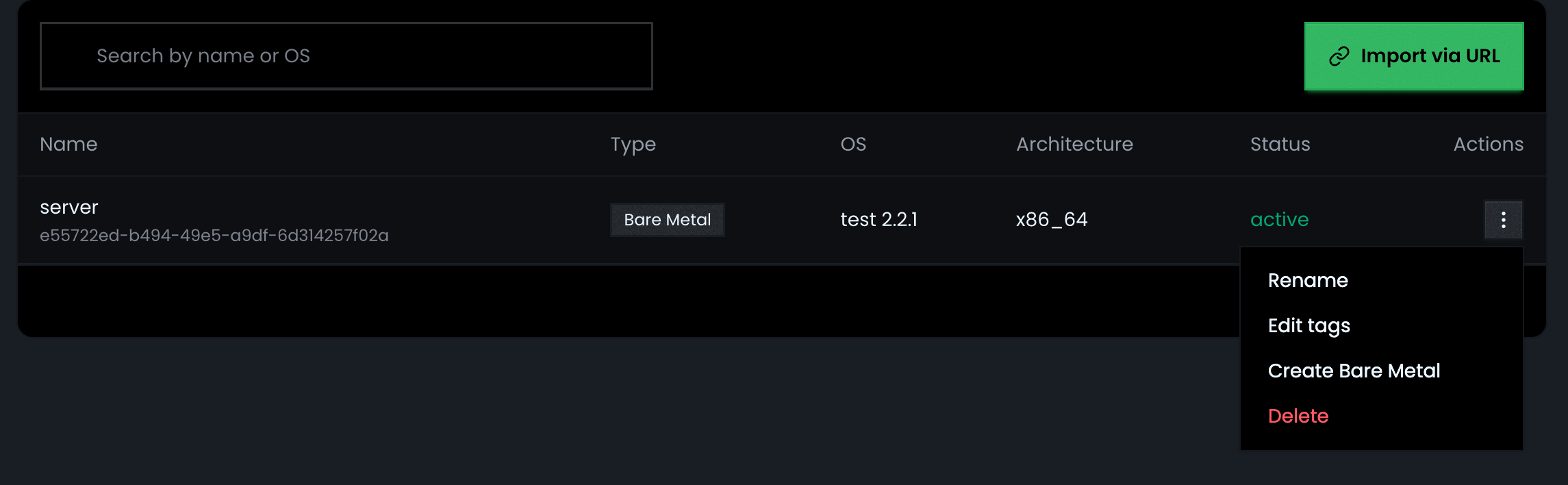
Images are pre-configured operating system templates used as the base disk when creating instances. The Images page lets you browse shared images, import custom images from a URL, and launch instances directly from any image.
Step 1: Browse Images
- Navigate to Enterprise > Images
- View the image list with the following details:
| Column | Description |
|---|---|
| Name | Image name and ID |
| Type | VM or Bare Metal |
| OS | Distribution and version (e.g., Ubuntu 24.04) |
| Architecture | x86_64 or aarch64 |
| Status | Current state — active, queued, saving, etc. |
Use the search bar to filter by name, ID, or OS distribution.
Step 2: Import an Image via URL
Create a custom image from a publicly accessible URL.
- Navigate to Enterprise > Images
- Click Import via URL
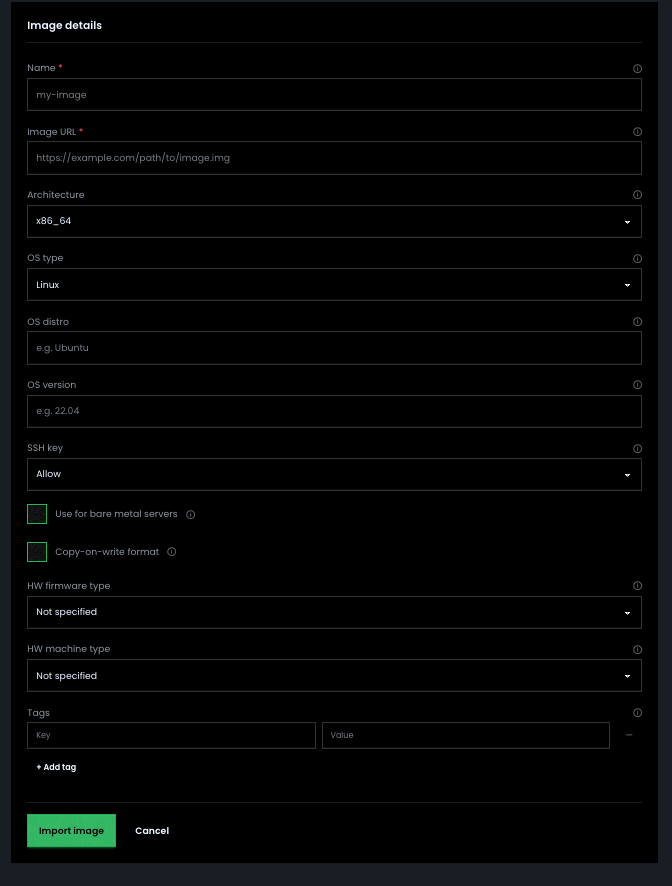
- Configure:
| Setting | Description |
|---|---|
| Name | e.g., ubuntu-24-app-server-v2 (1–63 characters) |
| Image URL | Public HTTP/HTTPS URL of the image file |
| Architecture | x86_64 (default) or aarch64 |
| OS type | linux (default) or windows |
| OS distro | Optional — e.g., ubuntu, rocky |
| OS version | Optional — e.g., 24.04 |
| SSH key | allow (default), deny, or required |
| Use for bare metal servers | Enable if the image targets Bare Metal |
| Copy-on-write format | Enable for COW format support |
| HW firmware type | Not specified, bios, or uefi |
| HW machine type | Not specified, pc, or q35 |
| Tags | Optional — key-value metadata |
- Click Import image
The import task will appear on the Tasks page where you can track its progress.
Step 3: Manage Images
From the images list, use the three-dot menu on any image to:
- Rename — Update the image name
- Edit tags — Add or modify key-value tag pairs
- Create VM — Launch a new Virtual Instance with this image pre-selected
- Create Bare Metal — Launch a new Bare Metal server with this image pre-selected (shown for bare metal images)
- Delete — Remove the image
Troubleshooting
| Problem | Solution |
|---|---|
| Image stuck in SAVING | Check the Tasks page for progress and errors |
| Cannot delete image | Verify the image is not in use by any active instance |
| Image shows ERROR status | Re-import the image; check that the source URL is accessible |
| Instance fails to boot from image | Ensure instance flavor meets the image's minimum disk and RAM requirements |
| Import page shows "Select Region & Project" | Select a region and project from the top bar before importing |